Activity 24: POSTMAN
FIRST WHAT IS POSTAMAN?
Postman is an API platform for building and using APIs. Postman simplifies each step of the API lifecycle and streamlines collaboration so you can create better APIs—faster. Easily store, catalog, and collaborate around all your API artifacts on one central platform. The Postman platform includes a comprehensive set of tools that help accelerate the API lifecycle—from design, testing, documentation, and mocking to the sharing and discoverability of your APIs.
Write a step-by-step guide on how to install Postman and how to use it. (PUT, GET, DELETE, POST)
Step 01:
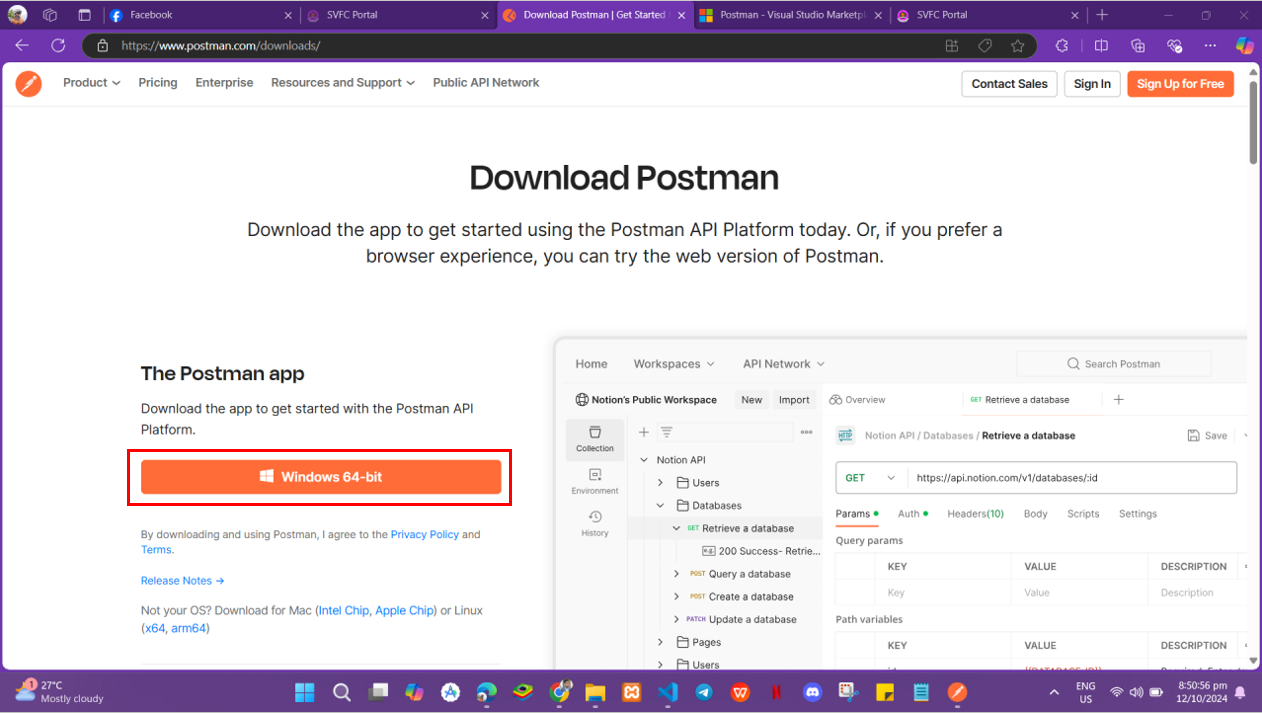
Browse and search for Postman and Download it
Step 02:
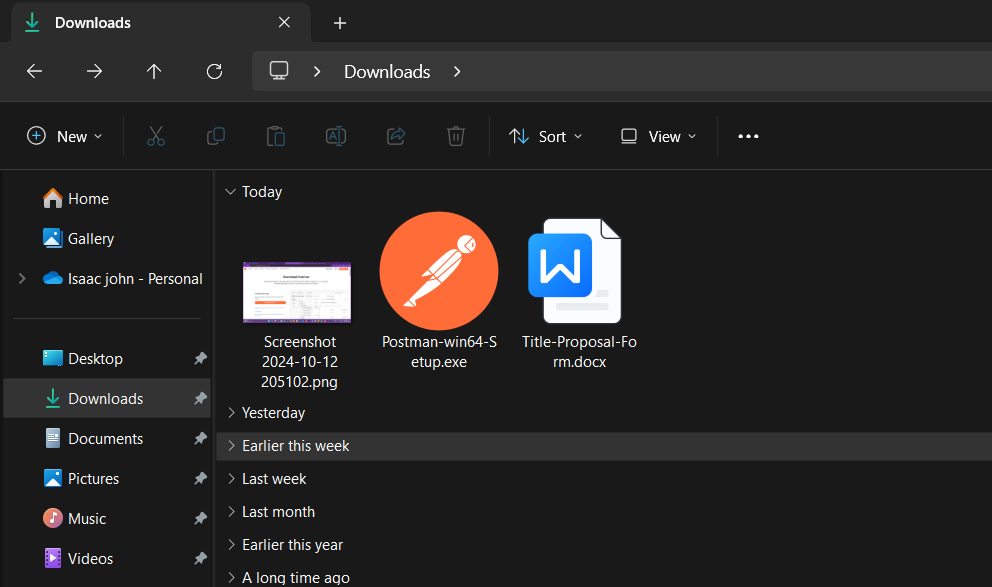
After download it now you can Install double click the Postman-win64-S
Step 03:
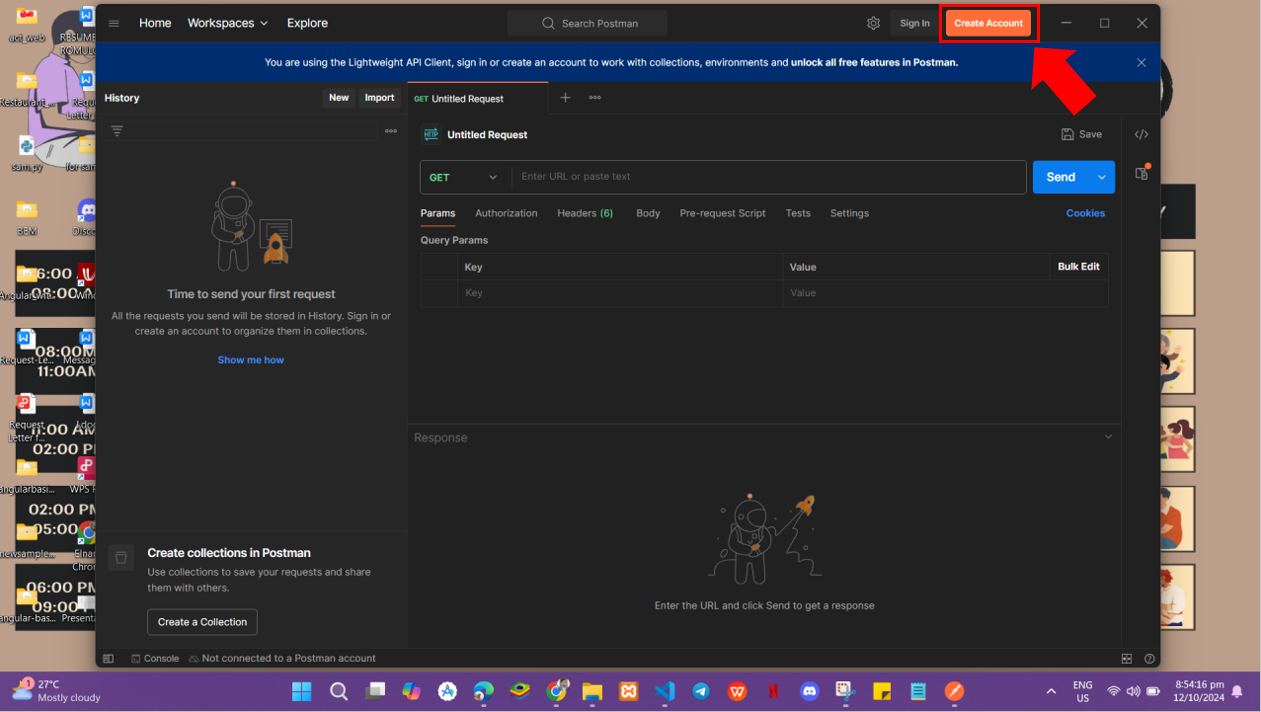
by installing it will directly to the overview of POSTMAN and you can Sign in or Create Account clicking the Sign in and Creating Account Button so in my case I choose Create Account using my Google Account.
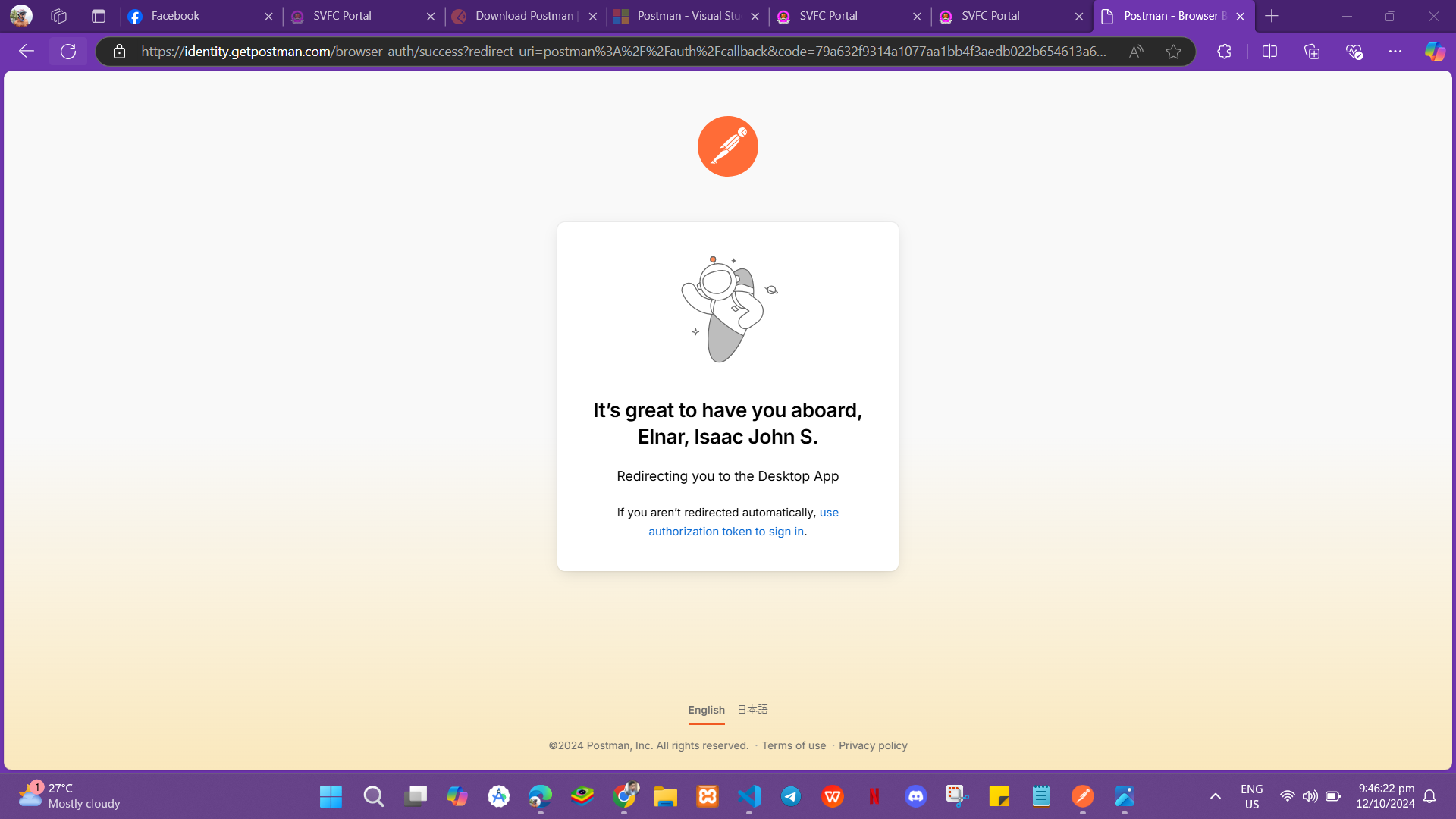
and after that I it will give you choices to directly create account then that is you are now have a Account in POSTMAN
Using Postman for Requests
Step 04:
to start in postman for request firs you need to click new
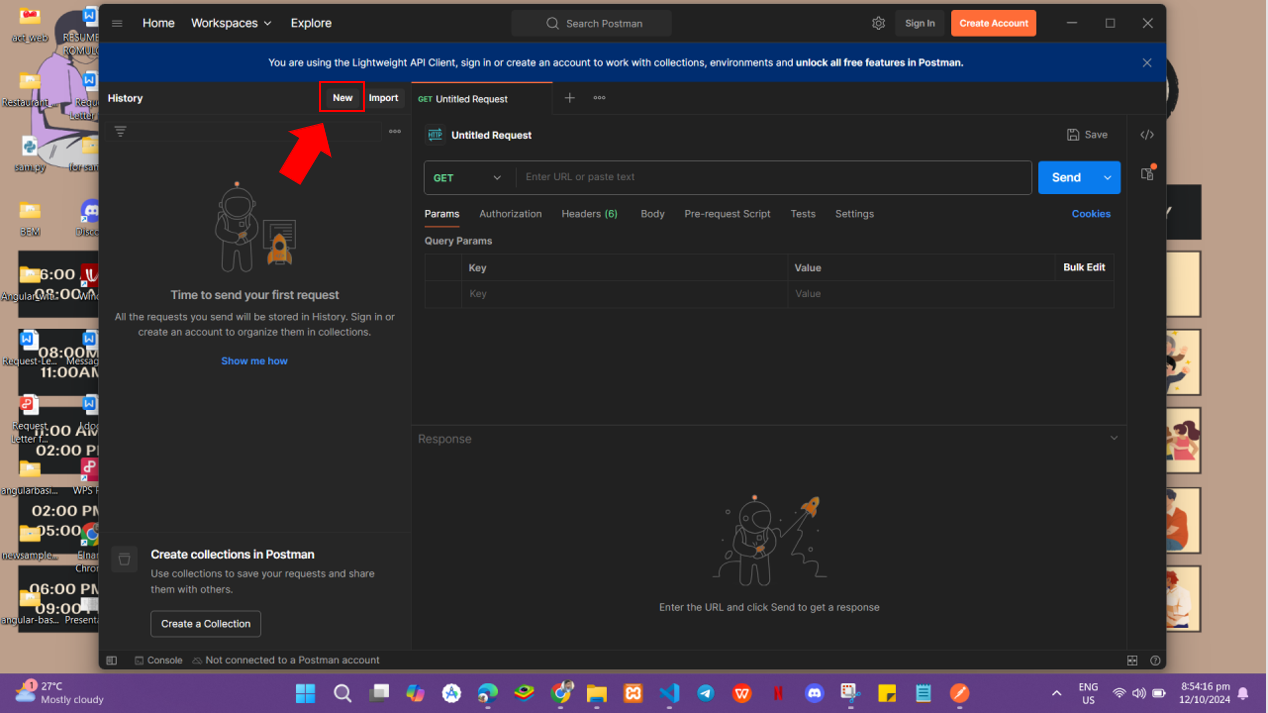
Step 05:
then it will pop the list of this and i choose the HTTP
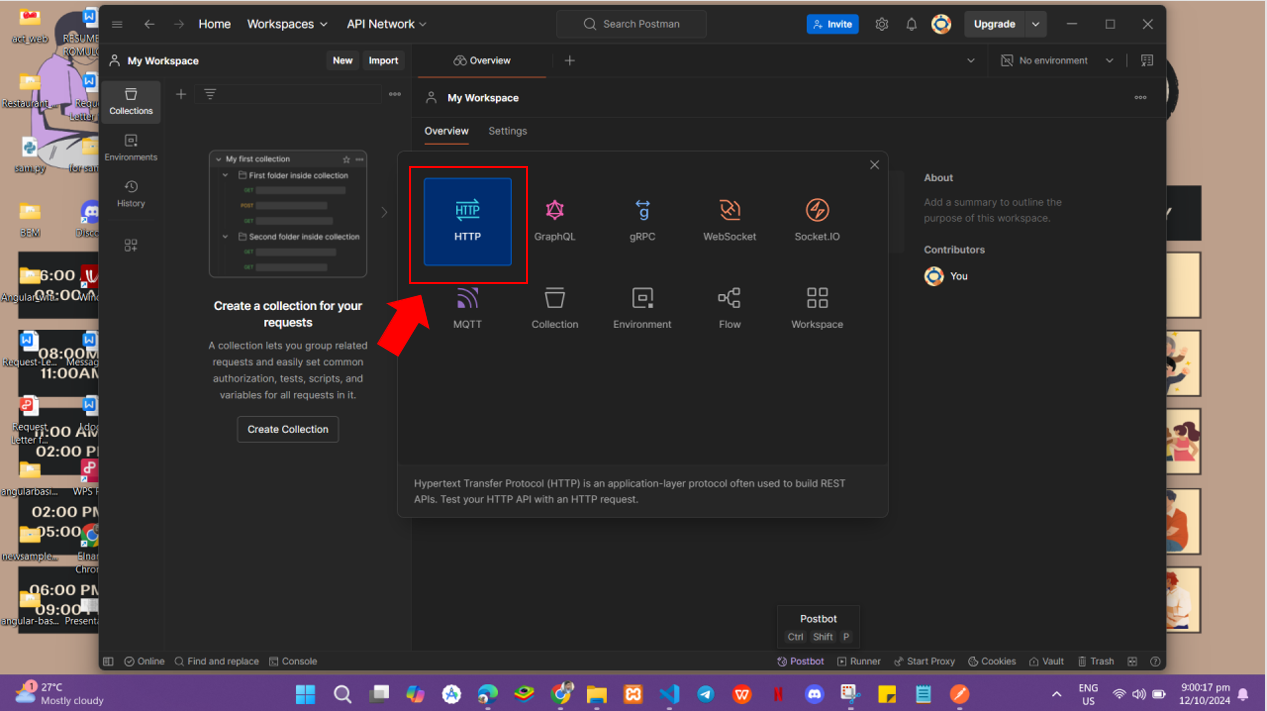
and it will be ready to request
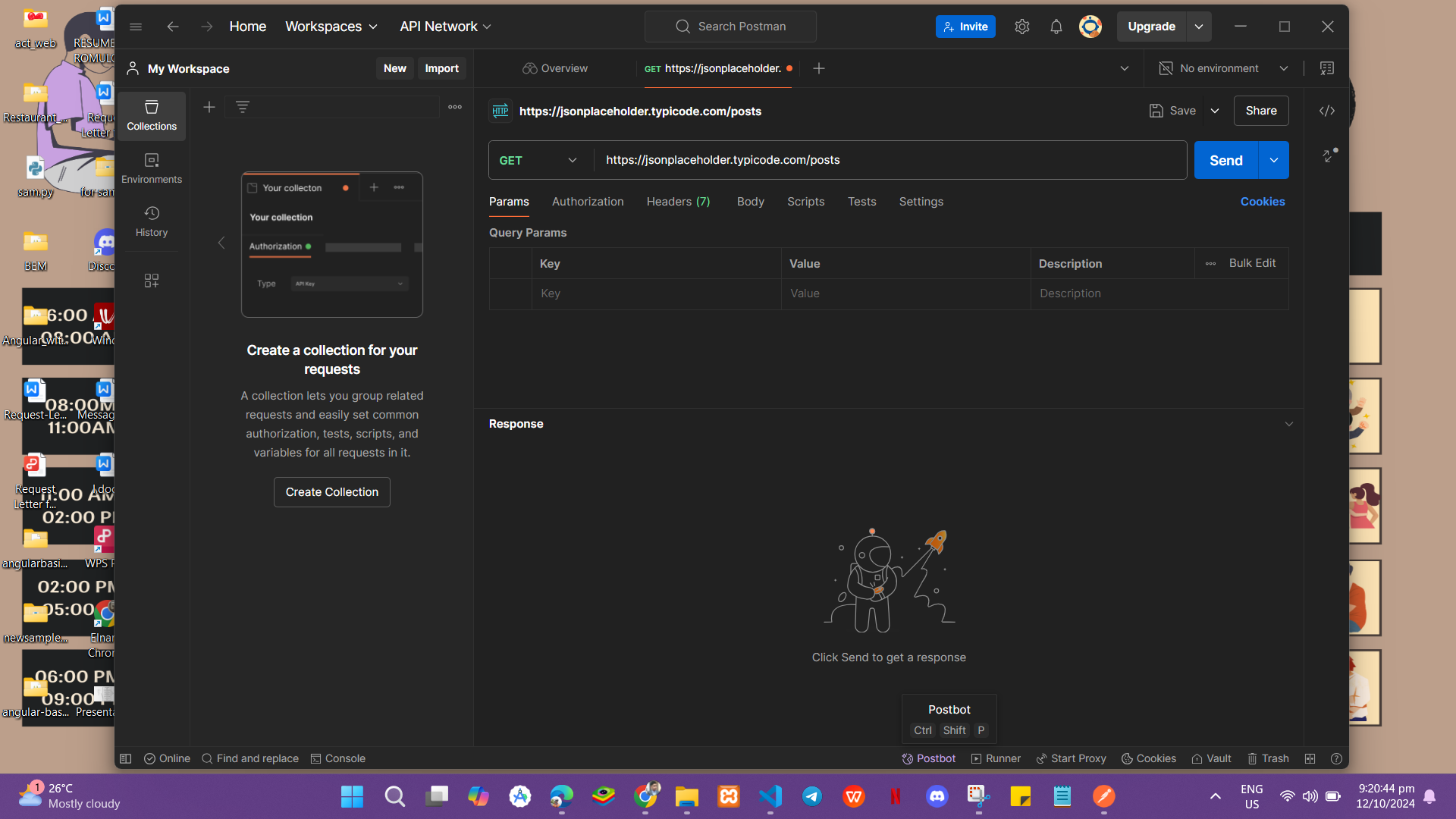
GET Request:
so let start GET request
first Select GET from the dropdown menu
then enter this url: https://jsonplaceholder.typicode.com/posts
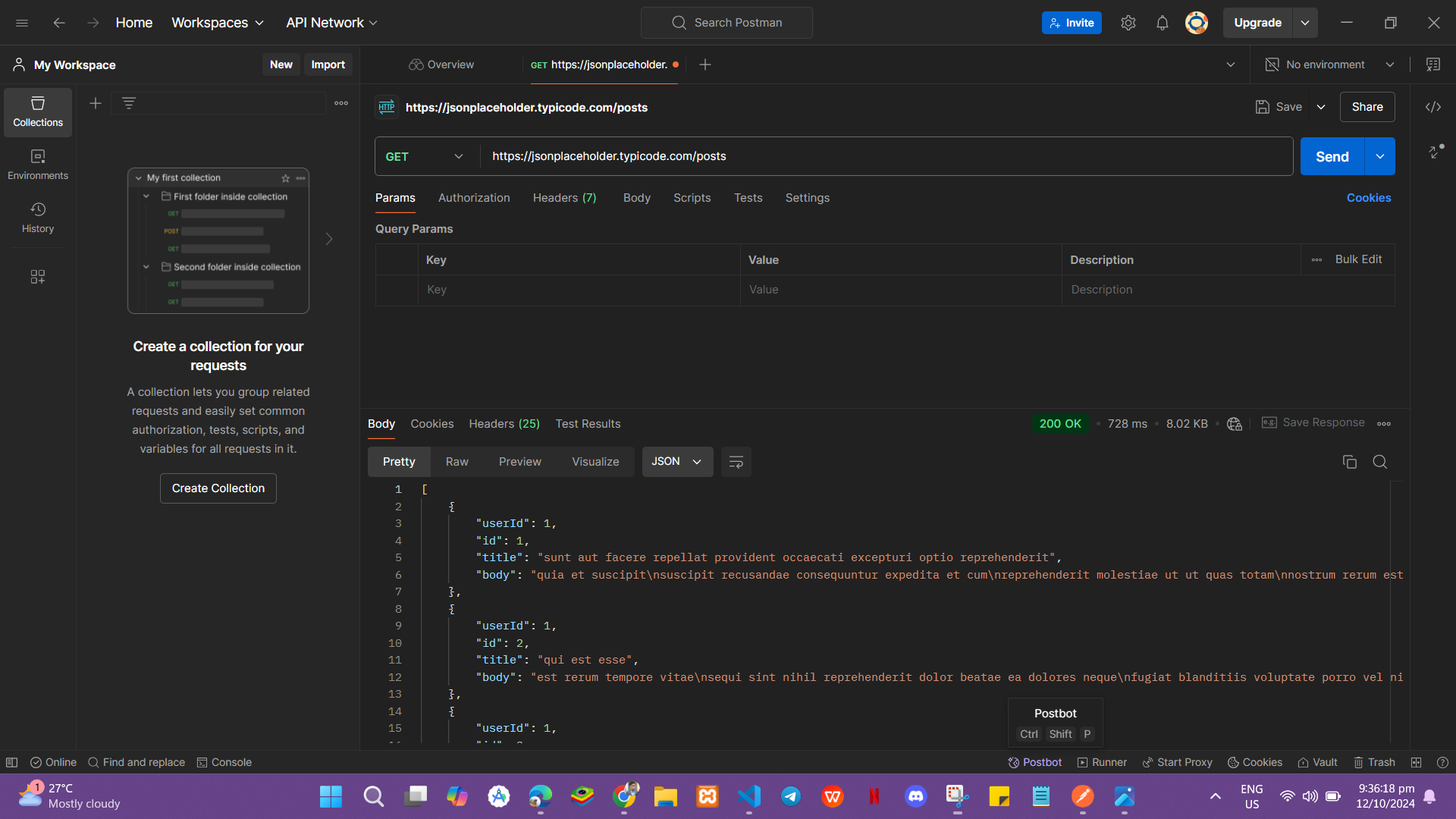
then click Send in the right side and see the response
after sending you will see in the bottom the list of JSON Data
POST Request:
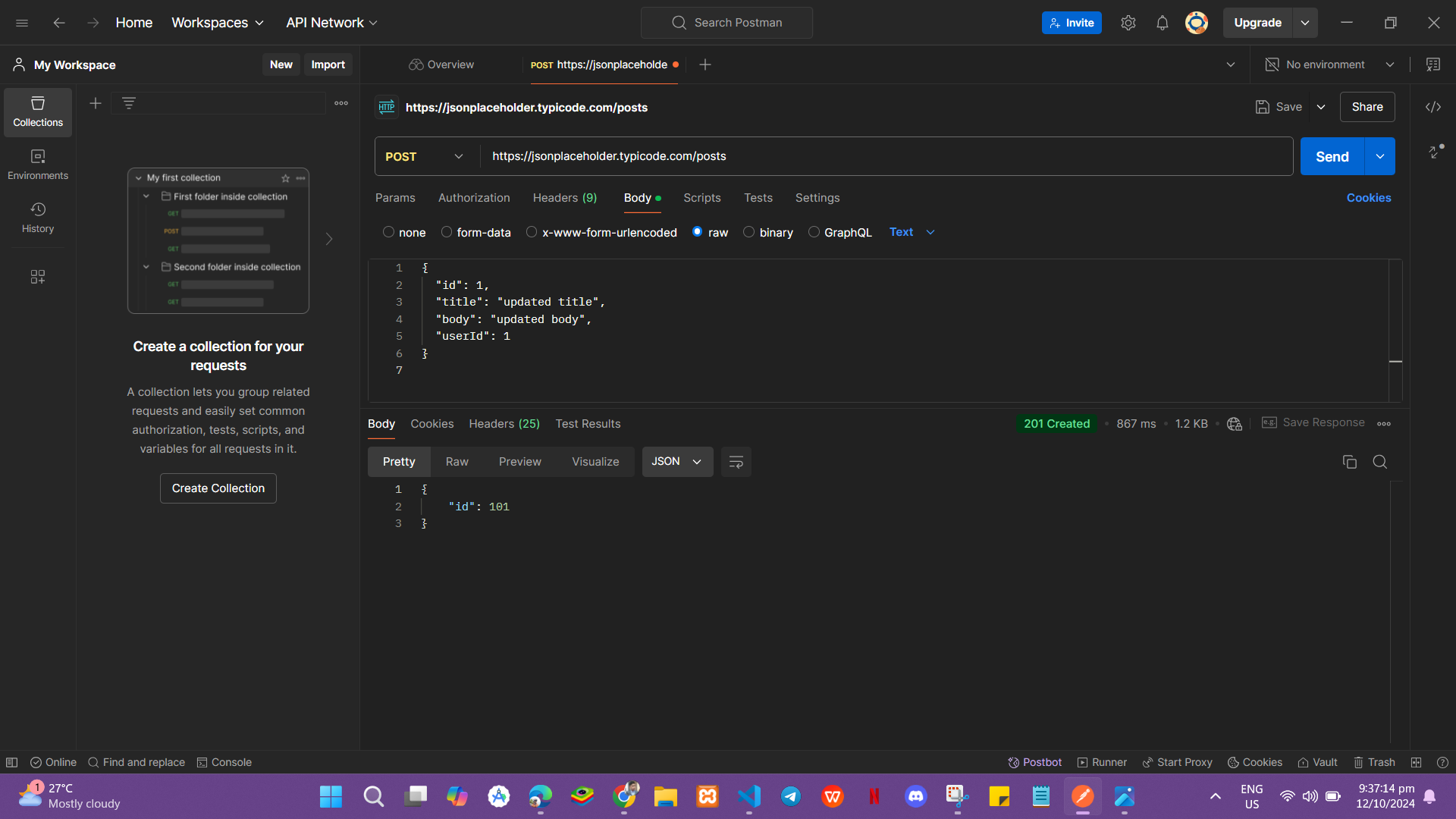
next for POST request
Just Select the POST from the dropdown menu
then enter the url: https://jsonplaceholder.typicode.com/posts
then Go to the Body tab, select raw, and choose JSON.
then click Send the JSON Data and see the response
{
  "id": 1,
  "title": "updated title",
  "body": "updated body",
  "userId": 1
}
so, after you see the result like the “id”: 101 indicating the successful creation of a new post.
{
    "id": 101
}
PUT Request:
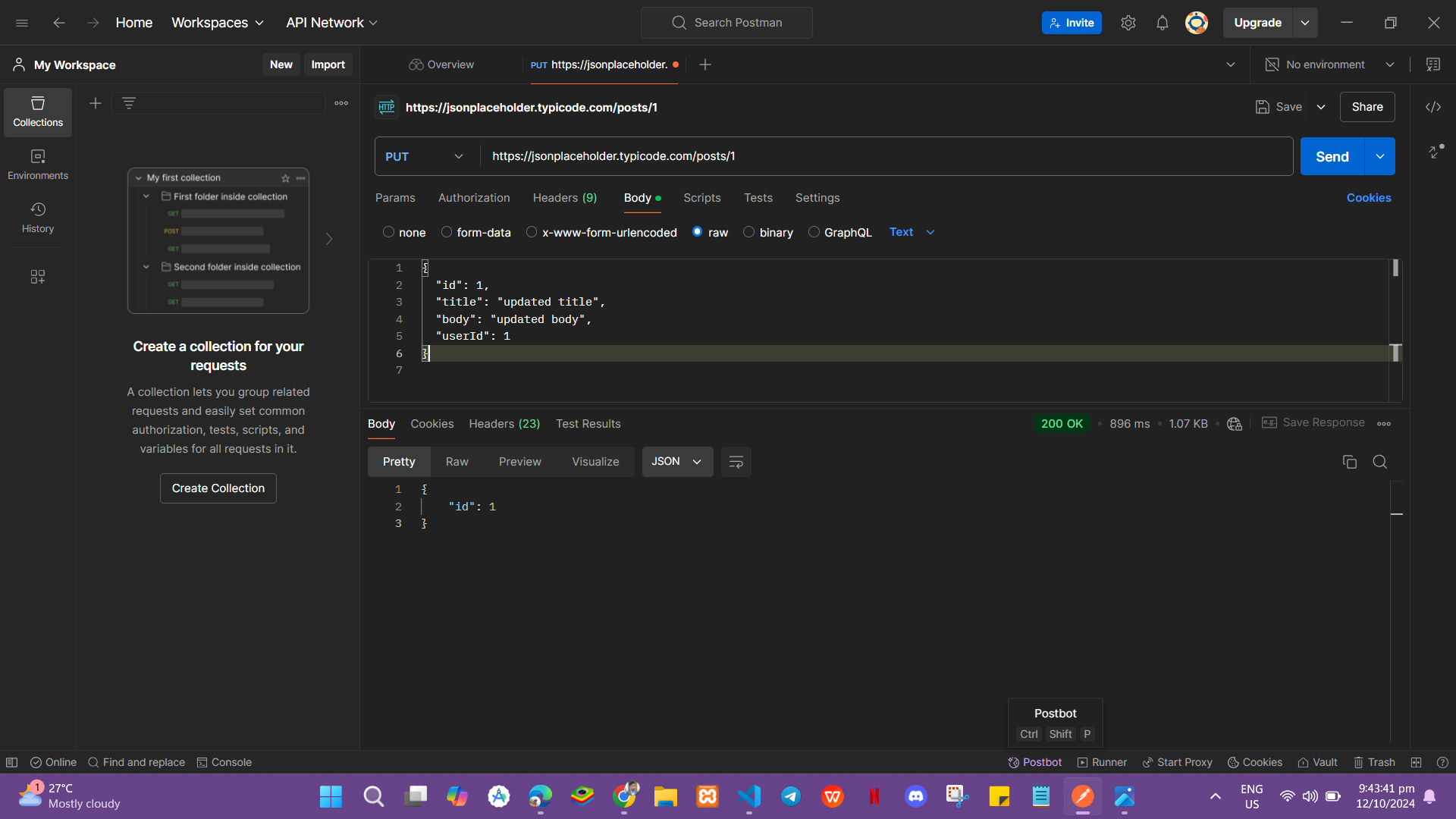
next for PUT request
Just Select the PUT from the dropdown menu
then enter the url: https://jsonplaceholder.typicode.com/posts/1
Then In the Body tab, select raw and enter updated JSON data:
then click send to see the response
{
  "id": 1,
  "title": "updated title",
  "body": "updated body",
  "userId": 1
}
so the response is
{
"id": 1
}
DELETE Request:
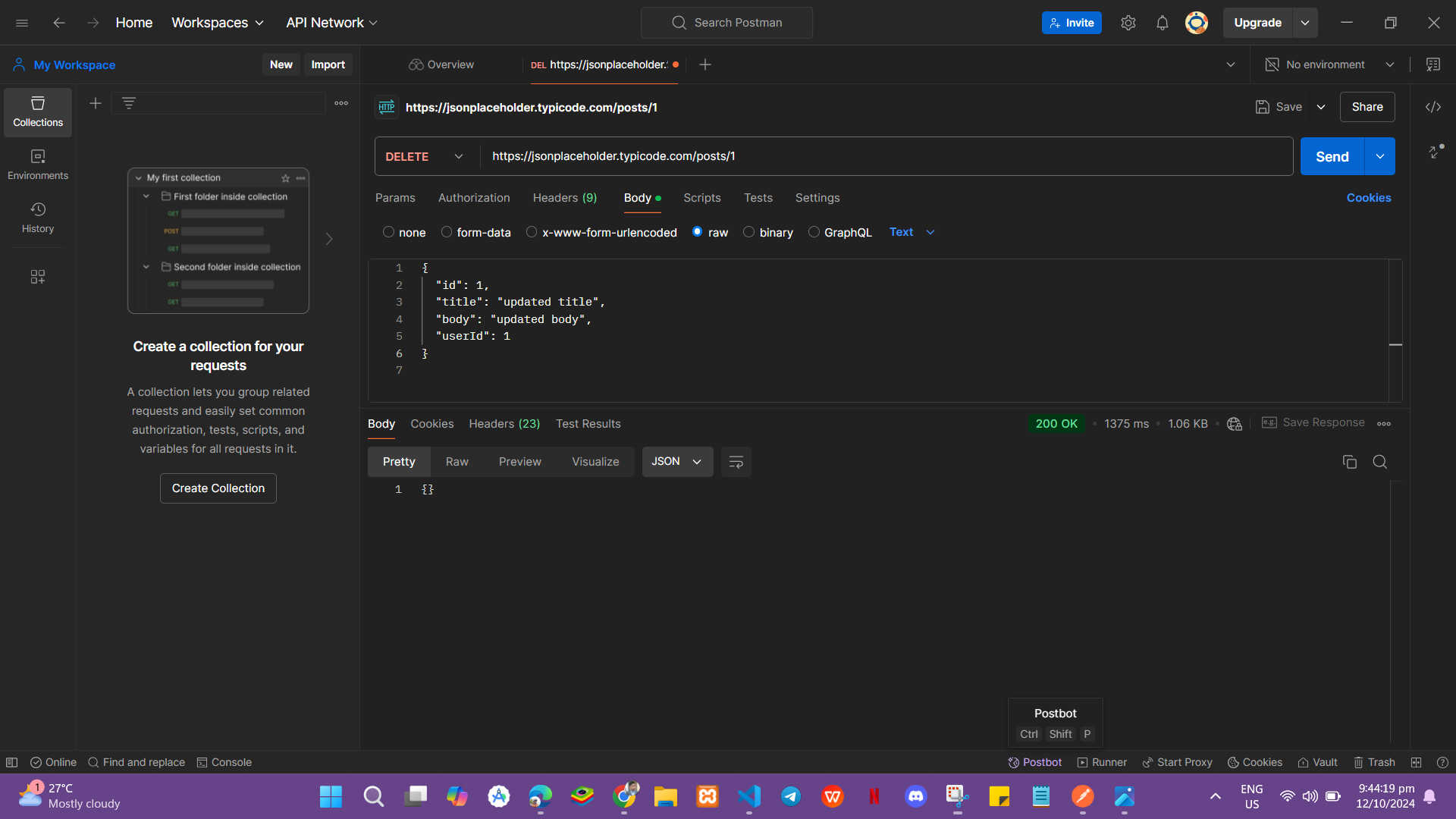
next for the DELETE request
Just Select the DELETE from the dropdown menu
then enter the url: https://jsonplaceholder.typicode.com/posts/1
then click the send to confirm delete!
{}
Reference: What is Postman? Postman API Platform
Comments
Join the discussionNo comments yet. Be the first to comment.

